For Bambu Lab, Prusa, Creality, Voron and 400+ printers
Real handwriting, written by your 3D printer.
Handplot turns your 3D printer into a pen plotter. Type a note and it writes it with a pen, in handwriting that actually looks real.
- Free
- Nothing to install
- Every move safety-checked
How it works
Four steps from text to paper
About five minutes, all in your browser. The app shows you around the first time you open it.
Type your text
Type or paste it in. The app tells you how many words fit on a page; longer text continues on page 2, 3 and so on.
Pick a handwriting
Choose from 45 styles. Neatness and line wobble make it tidier or more casual.
Set printer and paper
Choose your printer and paper size, then drag the paper on the build-plate preview to where it will sit.
Save and print
Click Save G-code and run the file like any other. The printer pauses so you can place the paper and attach the pen.
4 of the 45 styles · tap one to see it written See all 45 styles in the app →
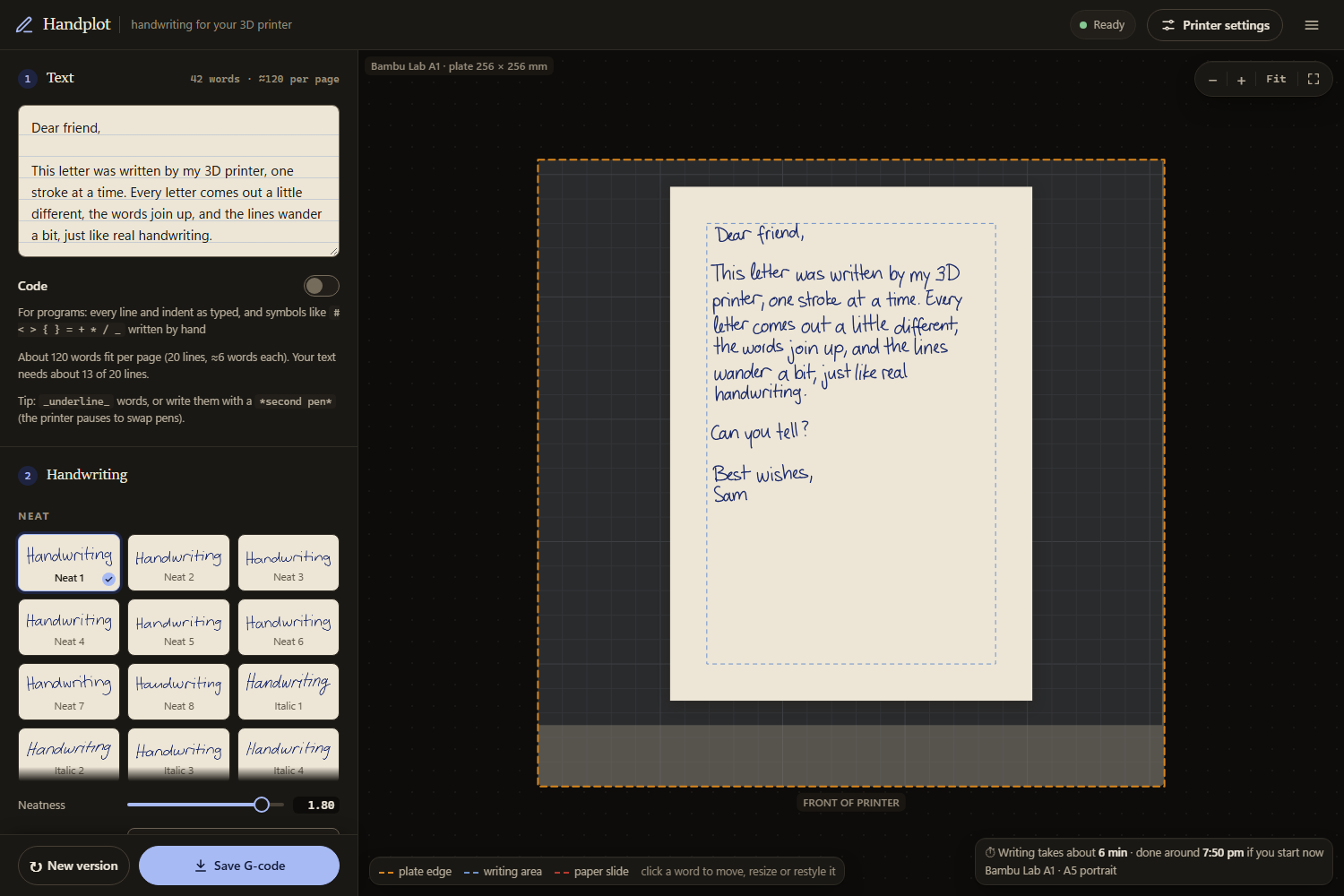
A quick tour of the app
 123
456
7
123
456
7
Swipe to see the whole app →
- 1Text. Type or paste what you want written. Characters the model can't write are listed under it.
- 2Handwriting. Click a style to use it.
- 3Neatness and letter size. Line wobble and spacing are under More options just below. What each one does.
- 4Build-plate preview. The page as it will be written. Drag the paper, scroll to zoom, click a word to move, resize or restyle it. On a phone, the full-screen button zooms onto the paper.
- 5New version / Save G-code. New version rewrites the same text with fresh handwriting. Save G-code makes the file.
- 6Printer settings. The pen offset, pen heights, pauses and speeds.
- 7Time estimate. How long the page takes, including the pauses.
Make the page yours
Edit any word or line
Click a word in the preview and a small bar opens right under it. Move it, resize it, give it another handwriting or write it again. The rest of the page stays exactly as it is.
- Move it
Drag the word, or nudge it with the arrow keys: 0.5 mm a press, 5 mm with Shift. It can't be dragged off the paper.
- Make it bigger or smaller
A− and A+ change it in 10% steps, from 30% to 400%. The lines below make room for a big word.
- Give it another handwriting
Pick any of the 45 styles for just that word, or go back to the page's own.
- Write it again
A fresh version of just that word, if one came out wrong.
- Change a whole line
Switch the bar to Whole line to resize, move or restyle the line the word is on: a bigger title, a smaller footnote.
- Add a word or a line
Add word puts new words right after it. With Whole line on, Add line puts a new line under that line. Your text box updates too.
Changed your mind? Ctrl+Z undoes a change, Ctrl+Shift+Z redoes it. Your changes are kept in this browser: they stay when you reload, press New version or edit other words, and the Text card counts them with a Reset all. Moved and resized words go through the same safety checks as the rest of the page before any G‑code is made.
What you need
Print the pen holder
Handplot is set up for Plotter by Elli: a pen holder that clips onto the print head of the A1 and A1 mini, no screws. It's made for Stabilo pens and fits similar-sized markers. To fit it, take the front cover off the print head.
Pen offset X 1 · Y −25 mm
Its pen offset, X 1 · Y −25 mm, is already the app's default, so with this holder you can skip calibrating.
Designed by Elli and shared free on MakerWorld, so it's downloaded from there.
Download the pen holderThe guide
Everything else, when you need it
Setting up, placing the paper, printing and every setting, step by step. Open just the part you need.
Before your first print
Calibrate the pen offset
The pen sits a little beside the nozzle, usually in front of it. The app needs to know by how much, so the writing lands where the preview shows it and the pen never runs off the front of the plate.
Using the Plotter holder? Its offset is X 1, Y −25 mm, already filled in (if you opened the app before, type it into Printer settings → Pen offset). If BambuPlot already works for you, copy its “tool offset” there instead. Otherwise, print the offset test once:
- Long line
- Y = 60 − 87 = −27 mm
- Short mark
- X = 100.5 − 105 = −4.5 mm
Save your G-code again after changing the offset: files saved before still use the old one. The test is the same for every printer; on an A1 mini the short mark is aimed at 90 mm instead of 105 mm.
Placing the paper
Reading the preview
The preview shows the build plate from above with the front of the printer at the bottom, drawn where the pen tip can reach. Drag the paper to where it will sit, or click Place paper automatically to put it where the pen reaches so writing starts at your top border.
- Red dashes: where you'll slide the paper back, only with Long pages ticked.
Running the file
What happens when you print
Send the .gcode file to the printer the same way as other plain G-code (for example on the SD card). The pauses are timed:
the printer carries on by itself when the time is up. With Printer sounds on, it plays a tune at each pause.
Seen from the side: the head moves and lifts the pen between strokes; the bed stays put.
Change the pause lengths in Printer settings → Pauses during printing. For long pages with Long pages ticked, there's a third pause: the pen stops over the last mark it wrote; slide the paper toward the back until that mark is right under the pen tip.
First time on a printer? Click Printing → Save reach check and run that file with no pen and no paper: the head visits the far corners of the page's writing at the height it travels at, slowly, so you can see the pen holder clears the bed clips, wiper and frame. Then do a dry run: tick Printing → Dry run and save: the pen is clamped as usual, then stays 8 mm above the paper the whole way. Watch it with a hand near the stop button.
Reference
What each setting does
The settings are on the left of the app. Each card shows the main ones; the rest are under More options, which names any you have changed. Every gap is an average: real handwriting never repeats exactly, so each word and line still varies a little, more with higher line wobble.
Neatness
How carefully the hand writes. Higher is tidier and more regular; lower is messier, with more variation between letters. Each style starts at the neatness it looks best at.
0 to 2Line wobble
How human the page layout is: lines that slope and bow a little, ragged starts, words that drift in size and slant. 0 gives ruler-straight lines.
0 to 2 · default 1Word and line spacing
Word spacing is the average gap between words, in letter heights. Line spacing is the distance from one line to the next, in mm; it must be at least 1.5 × the letter size.
words 1.0 · lines 8 mmLetter size
The height of small letters like a, e and x (the x-height), in mm. Capitals and tall letters are about twice that.
1 to 20 mm · default 2.8Pen heights
Writing height is the nozzle's height while the pen is down; the pen is clamped touching the paper at this height in pause 2. Pen-up height is used between strokes, about 2 mm higher.
10 mm · 12 mmPen offset
Where the pen tip is compared with the nozzle. X is left/right (negative = pen to the left); Y is front/back (negative = pen in front). Measure it with the offset test.
X 1 · Y −25 (Plotter holder)Everything else
| Setting | What it does | Default |
|---|---|---|
| Page (left panel) | ||
| Printer | Which printer the file is for: pick the maker, then the printer. A Bambu Lab, or any of the 400+ printers OrcaSlicer knows (Prusa, Creality, Voron, Elegoo, Qidi…). Its bed, keep-out areas and firmware are used for every safety check, so only run the file on that printer. | Bambu Lab A1 |
| Paper · Orientation | A4, A5, A6, US Letter, a 4×6 in card or Custom, portrait or landscape. | A5 portrait |
| Border ↔ / ↕ | Blank margin left and right (↔) and top and bottom (↕) of the page. | 15 mm · 15 mm |
| Printer sounds | Bambu's own start and finish tunes, plus a tune at each pause. A1, A1 mini and P2S only. | On |
| Long pages | For pages longer than the pen reaches (A4 on an A1). Off: the text continues on the next page. On: the printer pauses mid-page so you can slide the paper back. | Off |
| Lines | Plain paper, or the ruling of lined paper (6 to 10 mm). With lined paper, measure where its first printed line (↓ from the top edge) and margin line (→ from the left edge) are: every line of writing then sits on a printed line. Picking one also sets letters that suit it (2.3 mm for 8 mm lines). | Plain paper |
| Header · Page numbers | A line at the top of every sheet: your header text on the left, “Page 1”, “Page 2”… on the right. Each sheet's is written afresh. | Off |
| Printing (left panel) | ||
| Dry run | Saves files that do everything except write: the pen is clamped as usual, then stays 8 mm above the paper. | Off |
| Save reach check | Saves a file to run with no pen and no paper: after homing, the head visits the written points nearest the four corners of this page's writing, at pen-up height, slowly, waiting 3 s at each. Check the pen holder clears everything before the first real run on a printer. | |
| Start at line | Saves this page from that line on, after the pen ran out or the run stopped. Lines above it turn grey in the preview and aren't written again. | 1 |
| New version | Writes the same text again with fresh handwriting and layout. Use it if a word comes out garbled. | |
| Save G-code · Save all pages | Saves the page on screen, or every page as a zip (1_page.gcode, 2_page.gcode, …). Print them in order with a fresh sheet each time. | |
| Printer settings → Pauses during printing | ||
| Pause 1: place the paper | How long the head waits above the first letter so you can place and tape the paper. | 30 s |
| Pause 2: attach the pen | How long it waits at writing height so you can slide the pen down to the paper and clamp it. | 30 s |
| Pause 3: slide the paper | Only with Long pages on: time to slide the paper back between passes. | 45 s |
| Printer settings → Speeds | ||
| Writing speed | Pen speed while writing. 1500 is about the speed of real handwriting; each stroke varies a little. | 1500 mm/min |
| Travel speed | Speed of pen-up moves between strokes. | 6000 mm/min |
| Up/down speed | How fast the pen is lifted and lowered. | 600 mm/min |
| Pen settle time | A tiny wait after every pen down and up so the ink starts and stops cleanly. Raise it if strokes start faint. | 60 ms |
| Printer settings → Custom sizes | ||
| Bed width, depth, max height | Only used when the printer is Custom. | |
| Paper width, height | Only used when the paper is Custom. | |
More you can do
Lined paper, two pens and other extras
Small things that save a page, or make it look more like your own notebook.
Code, for programming assignments
Paste your program and turn on Code under the text box. Every line and indent stays as typed, and digits and the symbols the handwriting model never learned, like # < > { } [ ] = + * / _ & |, are drawn by hand in the page's own slant and size, a little differently each time. A line too long for the paper carries on one step further in, and the Indent slider under the text box sets how far in each tab goes.
Lined paper
Under Page → Lines, pick your paper's ruling, then measure two things with a ruler: how far its first printed line is below the top edge, and where its margin line is. Every line of writing then sits on a printed line, right of the margin, and the letter size drops to suit the lines if it was bigger.
Underline, and a second pen
Type _like this_ to underline words with a hand-drawn line, and *like this* to write them with a second pen, a red one say. The printer writes everything in the first pen, then lifts so you can swap pens, and writes the rest. A * or _ on its own, as in 5 * 3, is simply written.
Header and page numbers
Fill in Page → Header (your name and the date, say) and tick Page numbers. Every sheet starts with that line, written afresh each time, with “Page 1”, “Page 2” and so on at the right.
Edit any word or line
Click a word in the preview: drag it or nudge it with the arrow keys, make it bigger or smaller, give it another handwriting, write it again, or add words after it. Switch to Whole line for its whole line, or to add a line under it. See how it works.
Start again from a line
If the pen runs dry or the run stops, leave the paper taped down, fit a new pen and set Printing → Start at line to the line it stopped on. The lines above it turn grey and aren't written again.
Dry run
Tick Printing → Dry run to save a file that does everything except write: the pen is clamped as usual, then stays 8 mm above the paper. Check where it goes before you use any ink.
Every file also switches the nozzle heater off right after homing, so the hotend stays cold next to your pen holder.
Supported printers
Works with 404 printers
Bambu Lab, and every printer OrcaSlicer knows with a rectangular bed, each with its own writing area, keep-out areas and firmware. Among them: Bambu Lab A1, P1P / P1S and X1 Carbon / X1E, Prusa MK4, MINI and CORE One, Creality Ender-3 V3, Ender-3 Neo and K1, Anycubic Kobra Neo, Kobra 2 and Kobra 3, Elegoo Centauri Carbon and Neptune 4, Voron 2.4 350 and Trident 300, Qidi Q1 Pro, Sovol SV06 and SV07, Flashforge Adventurer 5M and Artillery Sidewinder X2.
Troubleshooting
Questions
The pen goes off the front of the plate on the last lines
The pen offset is missing or wrong. Run the offset test, save the offset, then save your G-code again: files saved before still use the old offset.
Not all of my text is on the page
It continues on the next page. Use the arrows above the preview to see each page and Save all pages to get them all. For one long A4 page instead, tick Long pages and slide the paper when asked.
A word looks garbled or has a stray mark
The model occasionally slips. Click that word in the preview and choose Write again, or New version for the whole page. Raising Neatness a little also helps.
The pen ran out halfway down the page
Leave the paper taped where it is. Fit a new pen, set Printing → Start at line to the line it stopped on and save again: the new file writes from that line on, starting over its first letter.
Some characters are missing
The model writes letters and ! " ' ( ) , - . : ; ?, and the app draws digits, # < > { } [ ] = + * / \ % & | ^ ~ _ @ $ and capital Q, X and Z by hand in the same slant and size. Accents are dropped (é becomes e), and anything else, such as other alphabets or emoji, is skipped. The app lists what it skipped under the text box.
Can it write code for a programming assignment?
Yes: C, C++, Java, Python and the rest. Paste the program and turn on Code under the text box. Every line and indent stays as typed, _ and * are written instead of underlining, and symbols like #include <stdio.h>, braces and operators are drawn by hand to match the handwriting. A line too long for the paper carries on one step further in, and the Indent slider sets how far in each tab goes. See Code, for programming assignments.
The nozzle shows a temperature
The G-code never heats anything, and it switches the nozzle heater off right after homing. Any heat you still see is left over from a print and cools down by itself. If your pen holder is printed in PLA, keep it away from the hotend.
Can I move a word, or make one line bigger?
Yes. Click the word in the preview: a bar opens under it to move it (drag it or use the arrow keys), make it bigger or smaller, give it another handwriting, write it again or add words after it. Switch the bar to Whole line to change its whole line or add a new line under it. See Edit any word or line.
Which printers does it work with?
Bambu Lab printers (A1, A1 mini, P1P / P1S, P2S and X1, checked by hand; it was built on an A1), and every printer OrcaSlicer knows that has a rectangular bed: Prusa, Creality, Voron, Elegoo, Qidi, Anycubic, Sovol and many more, over 400 in all. Each one's bed size, keep-out areas and firmware come from OrcaSlicer's printer profiles, and Klipper printers get pauses written the way Klipper reads them. Round (delta) and belt printers aren't supported. On a printer for the first time, save a reach check and a dry run before using ink: the data comes from OrcaSlicer, and only you can see how the pen holder fits. See the full list of supported printers. For any other printer, pick Custom and enter its bed size.
Is the G-code safe for my printer?
Every setting is range-checked, and every move in the file is checked against the chosen printer's bed (and the P1/X1 filament-cutter corner) before it is saved. If anything is unsafe, the app refuses to save and says why. Only run a file on the printer named at the top of it, and do a dry run first.